Log and complete a workout
Enter sets, adjust exercises and finish a workout session.
An active workout is the session you are doing now. Use it to record each set, adjust the exercise list when training changes, and save the workout to your history when you are done.
During the workout, Gymfile keeps the session active until you finish or cancel it. Completed sets can be used later for history, charts, personal records, progression and previous-workout values.
Log a set
- Open the active workout.
- Tap the exercise you want to log.
- Enter the weight and reps or sec for the set.
- Tap the check button on that set.
The next set becomes available after the previous set is completed. If the exercise uses time, tap the play button to start the timed set, then tap the check button when the set is done.
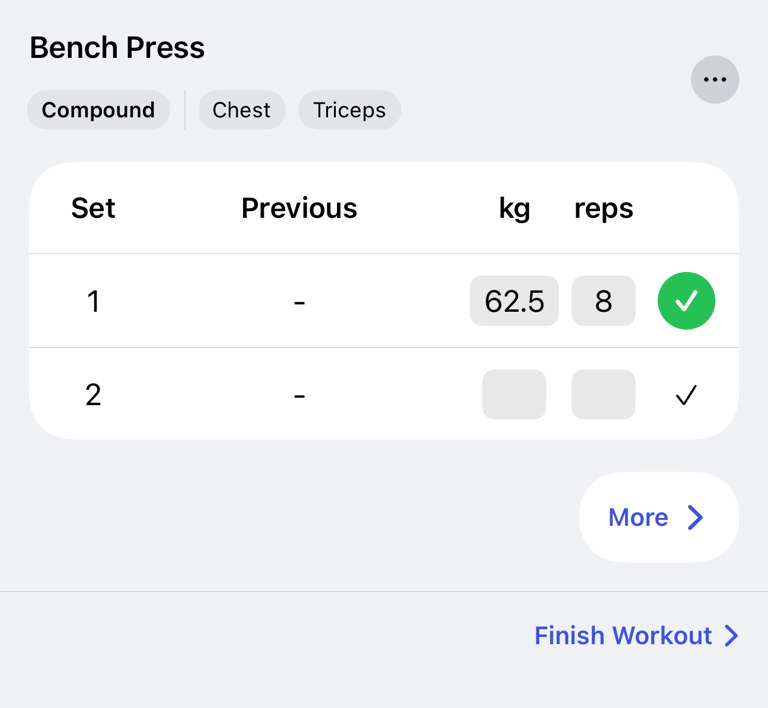
For more detail about weight, reps, time and exercise types, see Enter weights, reps and time correctly.
If the workout started from a plan with starting values, its sets, reps, and optional weight are already filled in. When the plan uses a rep range, the exercise also shows its Target range below the title.
Use values from the previous workout
Each set row can show a Previous value when Gymfile finds a matching set from your history. If the current set is empty, tap the previous value to copy it into the current set.
If there is no matching previous value, Gymfile uses values already entered for that exercise in the current workout, then falls back to default values.
Add, remove or edit sets
- Open the exercise in the active workout.
- Tap More....
- Tap Add set to add another set.
- Tap Delete set on a set you do not want to keep.
You can edit a set before or after marking it complete. If a completed set was checked by mistake, tap the check button again to mark it incomplete.
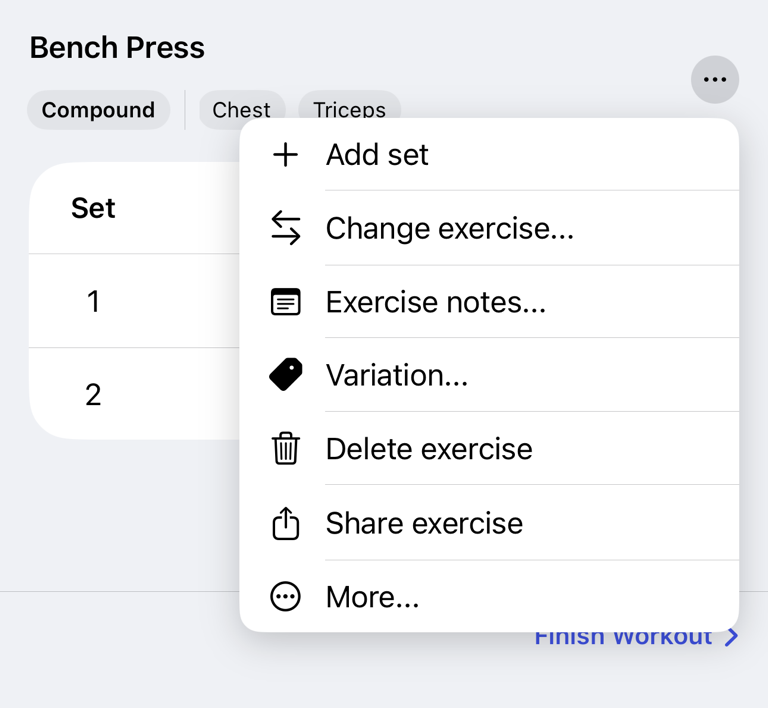
Change exercises during a workout
- Open the exercise you want to change.
- Tap More....
- Tap Change exercise... to replace it with another exercise.
- Tap Delete exercise to remove it from this workout.
To add a new exercise without replacing one, go to the final workout page and tap Add Exercise. If the workout started from a plan, exercises added during the active workout belong to this session. They do not automatically change the saved plan.
Finish or cancel the workout
- Tap Finish Workout at the bottom of an exercise page.
- Review the final workout page.
- Tap Finish Workout again.
- Confirm the action.
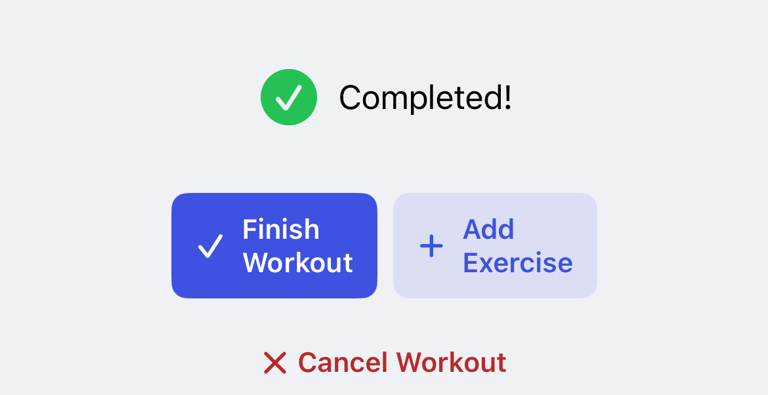
If some exercises are unfinished, Gymfile asks you to confirm before saving. To discard the session instead, tap Cancel Workout and confirm You will lose your progress.
Edit a completed workout
Finished workouts appear in your history. Open a finished workout to review the details and make changes when needed. Changes to a completed workout update that saved workout and its history.
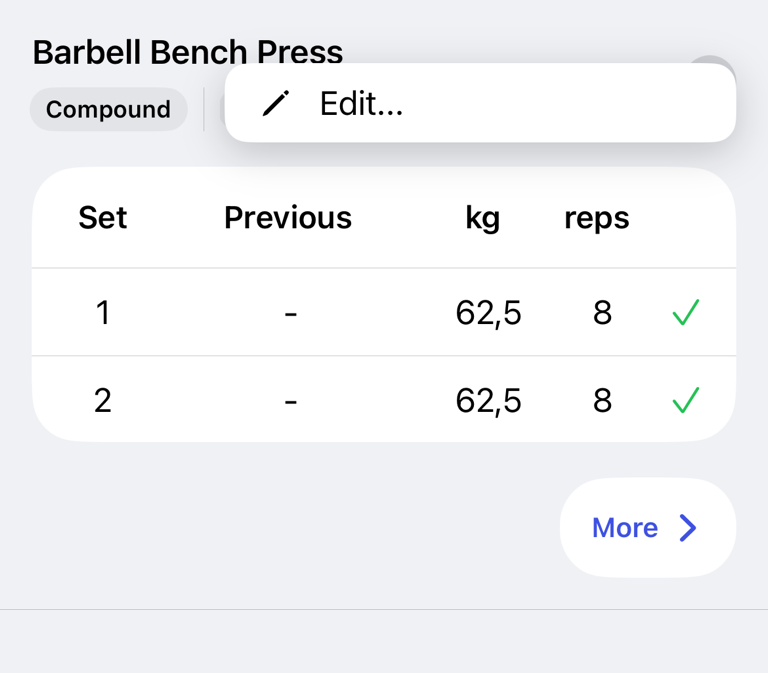
Important behavior
Starting from a workout plan copies the plan into a separate active session. Changes made while logging are saved with that session. Edit the saved plan separately if you want future workouts to use the same changes.
Gymfile remembers completed set values for future Previous values, progress charts, personal records and workout stats. Warm-up sets, drop sets, timed sets and supersets have their own behavior; see Use supersets, warm-up sets and drop sets.
Common questions
Why can’t I start another workout?
Gymfile allows one active workout at a time. Finish or cancel the current workout first.
What happens if I close the workout sheet?
Closing the sheet does not finish the workout. Tap the active workout bar to continue, finish or cancel it.
Do added exercises change my plan?
No. Exercises added during an active workout are saved with that session. Open the saved plan from the Workouts tab if you want to add the exercise for future workouts.