Use supersets, warm-up sets and drop sets
Organize advanced set types during a workout.
Advanced set types help your workout match how you actually train. Use supersets when exercises are grouped together, warm-up sets before heavier work, and drop sets when you reduce load after a hard set.
These settings are saved with the current workout or workout plan. Completed sets still appear in history, but Gymfile treats set types differently for progression and stats.
Create a superset
- Open an exercise in the workout.
- Tap More....
- Tap Create superset....
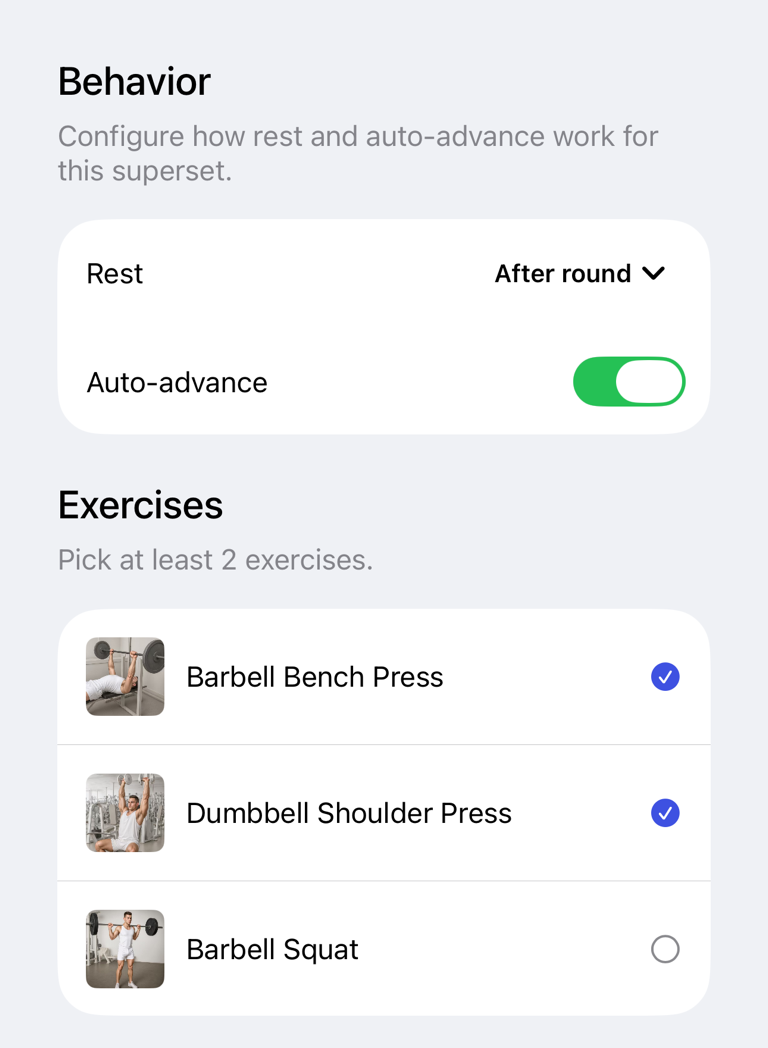
- In the Superset sheet, choose at least two exercises.
- Choose After round or Between exercises for Rest.
- Turn Auto-advance on or off.
- Tap the check button.
When creating a superset from an exercise, Gymfile preselects that exercise and the next eligible exercise when possible. You can change the selected exercises before saving.
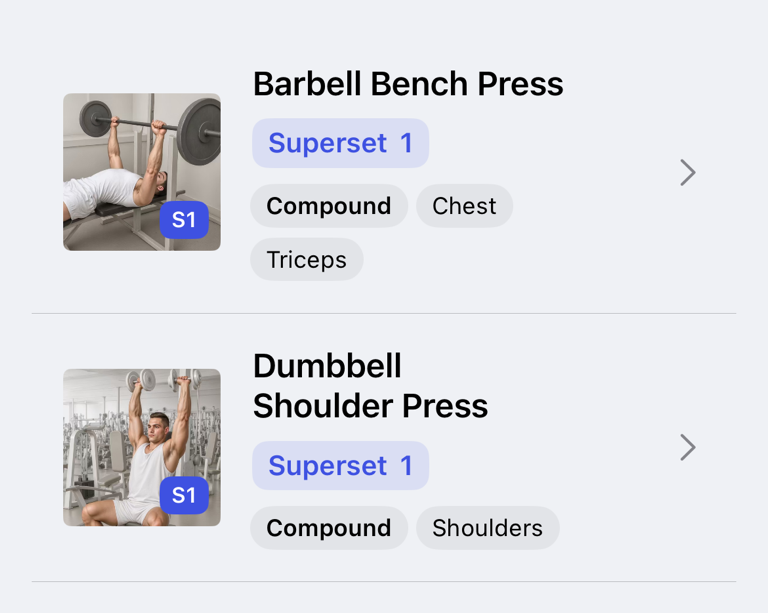
After saving, exercises in the same group show the same superset number in the workout.
Edit or remove a superset
During an active workout:
- Open an exercise in the superset.
- Tap More....
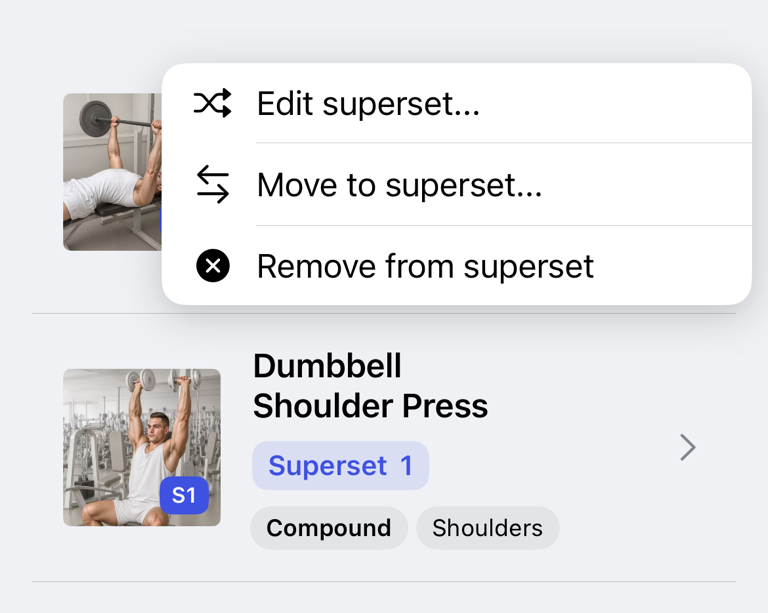
- Tap Edit superset....
- Change the exercises, Rest or Auto-advance.
- Tap the check button.
In a saved workout plan, touch and hold an exercise in the superset, then tap Edit superset....
To remove one exercise during an active workout, open it, tap More..., then tap Remove from superset. In a saved workout plan, touch and hold the exercise, then tap Remove from superset. If the superset has only two exercises, removing either one removes the entire superset.
To delete the entire group, open Edit superset..., tap Delete Superset, then confirm.
Add or move exercises between supersets
If an exercise is not in a superset, tap More... and then Add to superset... to add it to an existing group. If it is already in a superset and another group exists, tap Move to superset....
Superset members follow the workout's exercise order. Reorder exercises in the workout or plan when you want the superset round to move in a different order.
Rest and auto-advance
After round starts rest after you complete one set for every exercise in the superset. Between exercises starts rest between member exercises.
When Auto-advance is on, Gymfile moves to the next pending superset exercise after you complete a set. Turn it off if you prefer to choose exercises manually.
Mark warm-up sets and drop sets
- Open the exercise.
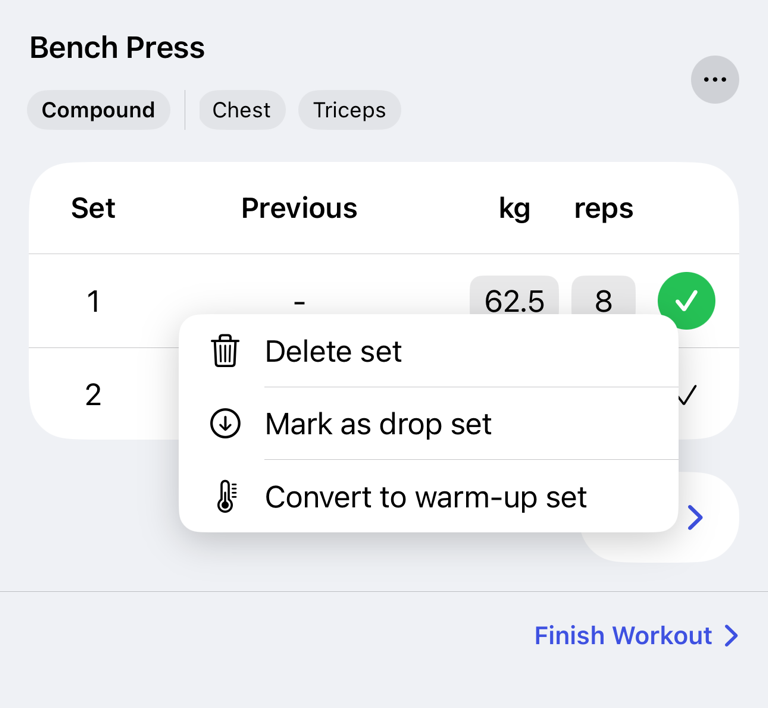
- Tap the set you want to change.
- Tap Convert to warm-up set to mark it as a warm-up.
- Tap Convert to working set to change it back.
- Tap Mark as drop set to mark it as a drop set.
Warm-up sets can use reduced rest if Reduce Rest for Warm-Up Sets is enabled in the rest timer settings. Drop sets are saved as drop sets in your history.
Important behavior
Supersets are part of the workout or plan where you create them. If you create or edit a superset during an active workout, that change belongs to the current session. Edit the saved plan separately if you want the same superset next time.
Working sets, warm-up sets and drop sets are all saved, but they are labeled differently so your workout history stays clear. For entering values correctly, see Enter weights, reps and time correctly.
Common questions
Why can’t I save a superset?
A superset needs at least two selected exercises.
Why did a superset disappear?
If removing an exercise leaves fewer than two exercises in the group, Gymfile removes that superset setup.
Do supersets change my exercise history?
No. They change workout flow and rest behavior. The completed sets still belong to their exercises.