Create and edit workout plans
Build reusable workout plans, add exercises and adjust them as your training changes.
Workout plans are saved workouts you can start again later. Use them for routines you repeat, such as Push Day, Leg Day or a full-body session.
How it works
A workout plan stores the workout name, exercise list, exercise order and superset setup. When you tap Start Workout, Gymfile creates a separate active workout from that plan. The plan stays available for the next time you train.
Pre-built routines and AI workouts can be added to your plan. You can also create an empty custom workout and build it yourself.
Create a plan
- Tap the Workouts tab in the bottom bar.
- If you see More, tap More. If you see Plan Workout, tap Plan Workout.
- In the sheet, tap Add an Empty Workout.
- Tap Add Exercise.
- Choose the first exercise for the plan.
When you do not have any workouts yet, the Workouts tab shows Create Custom Workout directly in the start options.
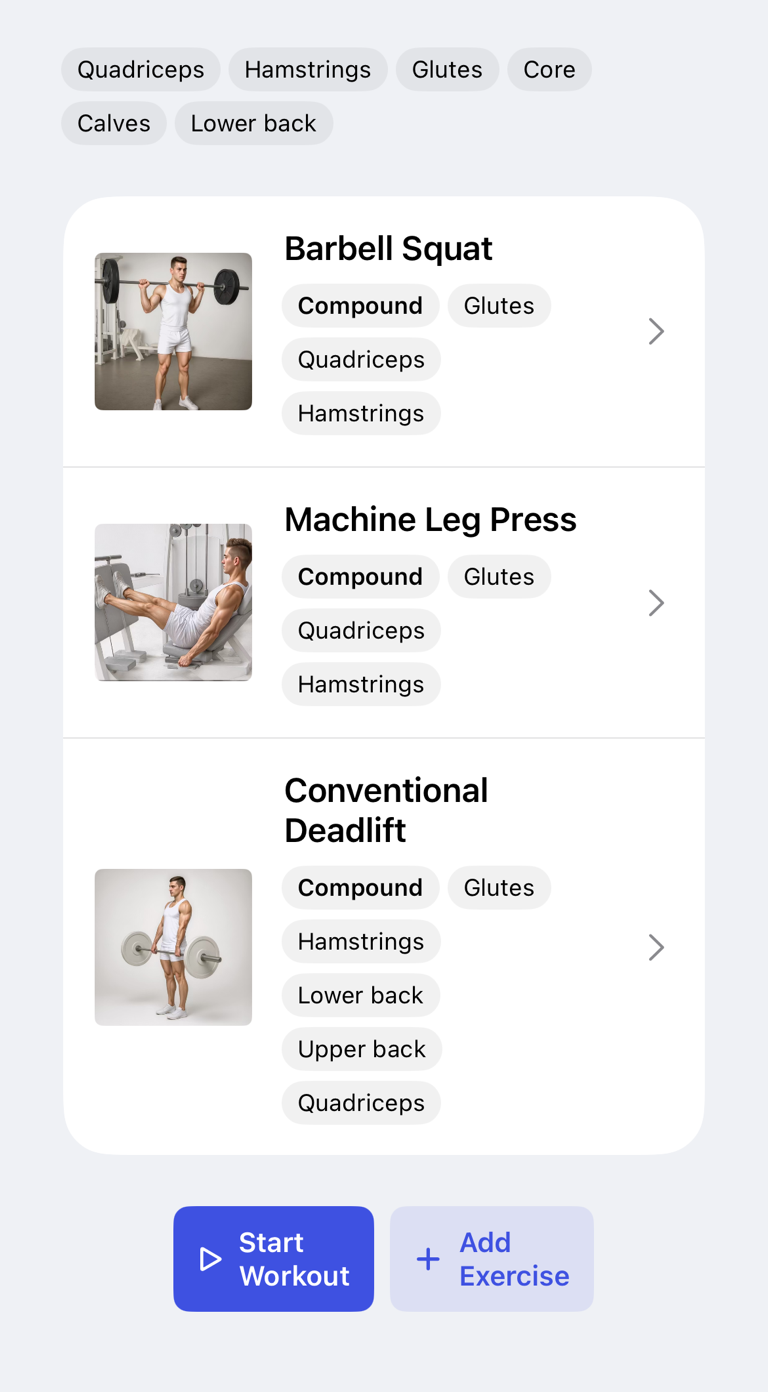
Add a pre-built routine
Use this when you want Gymfile to create a ready-made plan for you.
- Tap the Workouts tab.
- If you see More, tap More. If you see Plan Workout, tap Plan Workout.
- In the sheet, tap Explore Routines.
- Tap a routine to view its details.
- Choose the day you want to preview, if the routine has more than one day.
- Tap Add to Your Plan.
Routine details also include Perform Now when you want to start one routine workout immediately instead of saving the plan first.
Generate a workout with AI
Use AI Workout when you want a plan based on your own prompt, for example the muscles you want to train and how much time you have.
- Tap the Workouts tab.
- If you see More, tap More. If you see Plan Workout, tap Plan Workout.
- In the sheet, tap Ask Coach to Build.
- Describe what you want to train in the text field.
- Tap Ask AI.
- Review the generated workout.
- Tap Add to Your Plan.
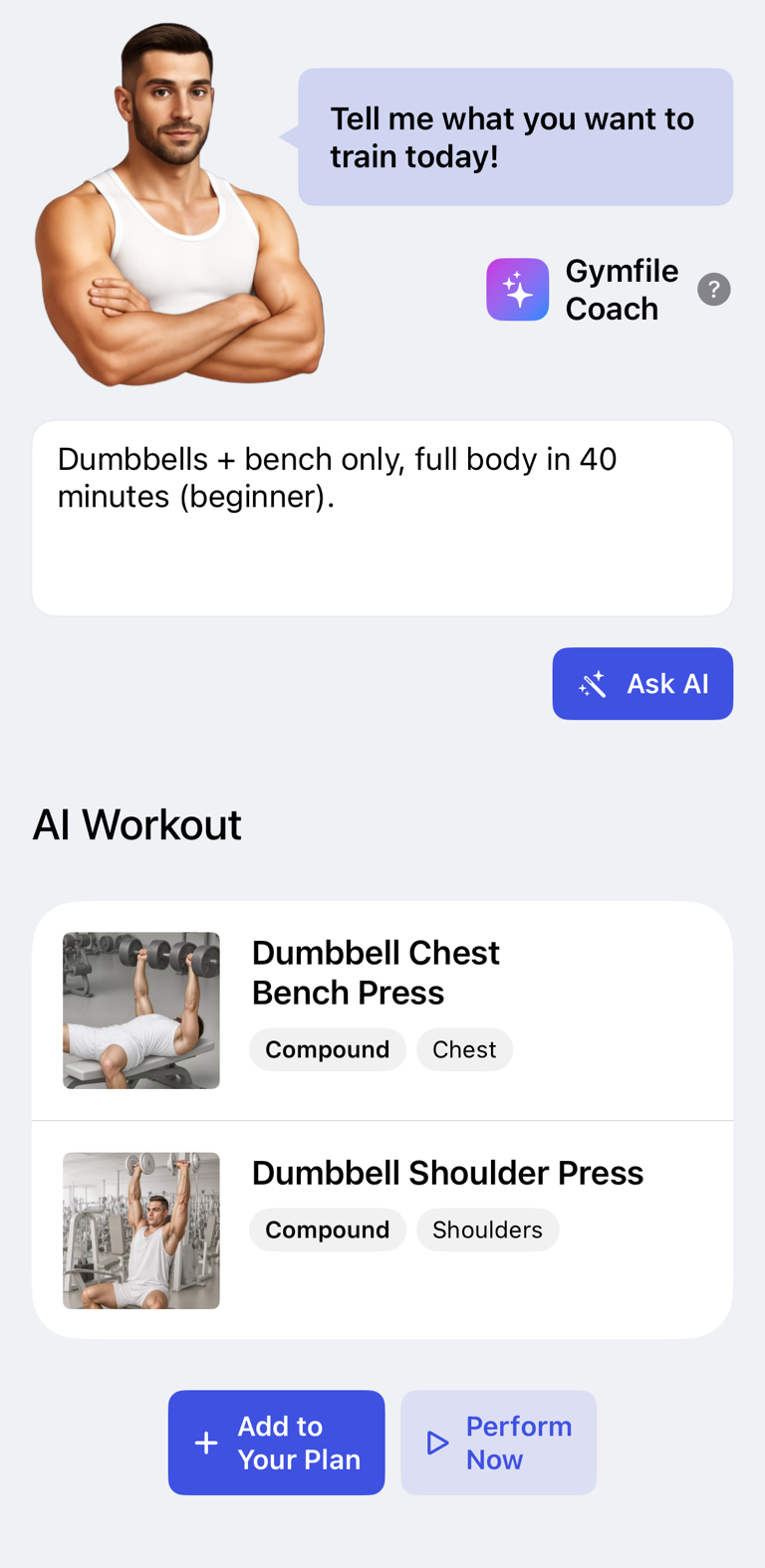
You can also tap Perform Now from the generated result to start it immediately.
Rename a plan
- Tap the Workouts tab.
- Tap the workout row you want to rename.
- Tap the top-right menu.
- Tap Edit name.
- Enter the new name.
Add, remove or replace exercises
To add an exercise, open the plan and tap Add Exercise. Choose an exercise from the selection sheet.
To remove an exercise, touch and hold the exercise row, then tap Delete.
To replace an exercise, touch and hold the exercise row, tap Change exercise..., then choose the replacement. Gymfile inserts the new exercise in the same position.
Reorder exercises
- Open the workout plan.
- Touch and hold an exercise row.
- Drag it to the new position.
- Lift your finger to save the new order.
The new order is used the next time you start the workout from that plan.
Set starting values for the next workout
Use starting values when you want a routine exercise to begin with a specific number of sets, a rep target, or a weight.
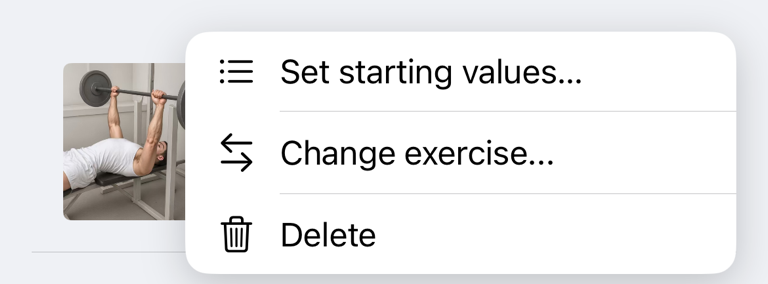
- Tap the Workouts tab.
- Tap the workout plan you want to edit.
- Touch and hold the exercise row.
- Tap Set starting values....
- Enter Sets, a single rep target or a range in Reps or rep range, and an optional Weight.
- Tap Save.
Gymfile shows the saved values below that exercise in the plan. When you start the plan, it copies them into the active workout. A rep range also appears as a Target below the exercise while you train.
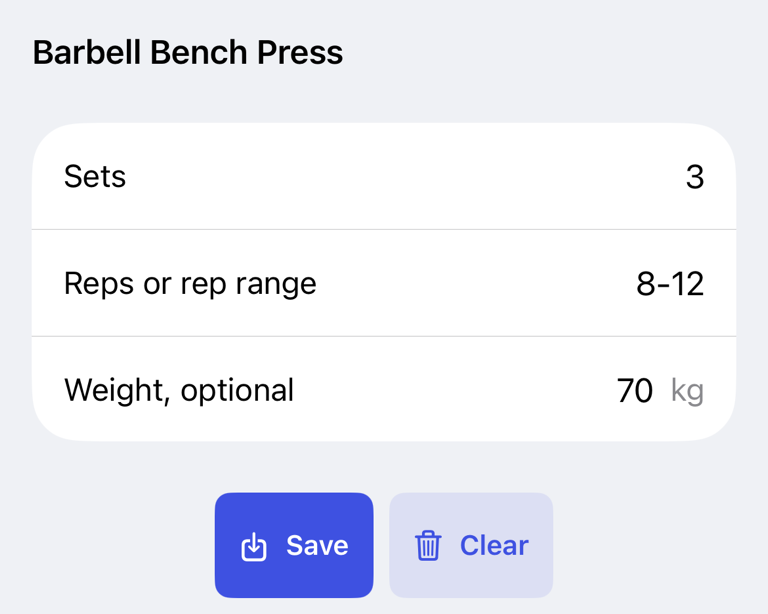
If you have not saved starting values before, Gymfile fills the form with values from your most recent matching exercise when that history is available.
Configure sets, reps, weights and notes
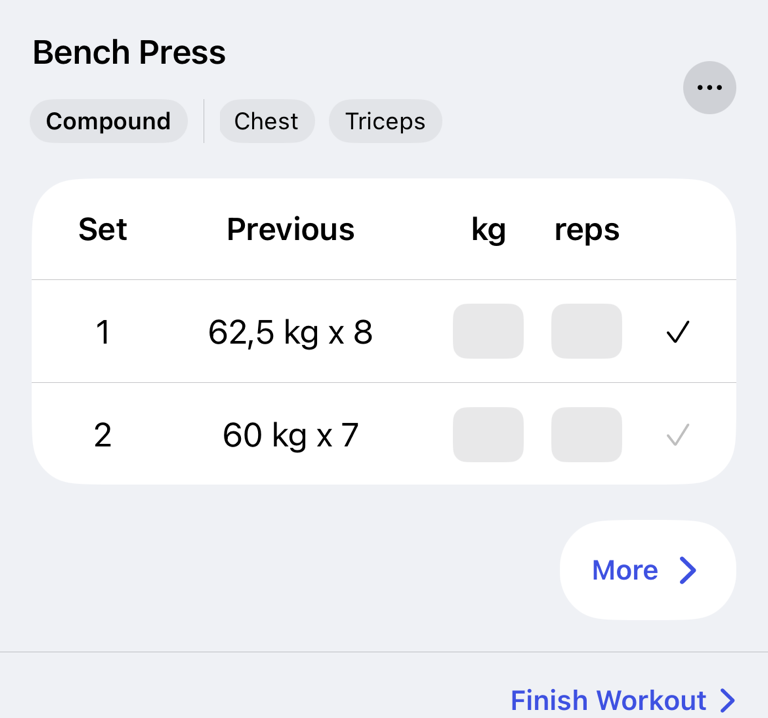
Plan details control which exercises are in the workout. Set values are adjusted after you start the workout.
During an active workout, each exercise shows set rows with Set, Previous, your weight unit and reps or sec. Enter the weight and reps or seconds you want to perform, then tap the check button for the set.
Use the exercise menu during the workout to tap Add set, Delete set, Convert to warm-up set, Convert to working set or Mark as drop set. The same menu includes Exercise notes... for notes that appear with that exercise.
For the full workout logging flow, see Log and complete a workout.
Important behaviour
Starting a workout from a plan creates a new active workout. Changes you make while logging that active workout belong to that session. They do not automatically change the saved plan.
Starting values are for the next workout only. After you complete that exercise, Gymfile removes those values from the plan. To remove them earlier, open Set starting values... and tap Clear.
AI-generated workouts and pre-built routines become normal workout plans after you add them to your plan. The same rename, add, remove, replace and reorder actions apply.
When a workout starts, Gymfile uses the plan's exercise list and looks at your previous performance for each exercise. The Previous column shows matching values from your past workout when they exist. If the current set fields are empty, tapping the previous value copies it into the current set.
If there is no previous value, Gymfile falls back to values already entered for that exercise in the current workout, then to default values.
Common questions
Can I use a generated workout as a starting point?
Yes. Add it to your plan, then edit it like any other workout plan.
Why did my plan not change after I added an exercise during a workout?
Exercises added during an active workout are saved with that workout session. Open the saved plan from the Workouts tab and add the exercise there if you want it in future workouts.
Can I delete a plan?
Workout plans are archived from the plan menu. Archived plans move out of your main workout list and can be restored or deleted from the archive.