Start your first workout
Learn the basic flow for starting, logging and saving a workout.
Your first workout can start from a saved plan, a pre-built routine, or an empty session. The important part is to start the session, add the exercises you need, complete at least one set, and finish the workout when you are done.
How it works
When you start a workout from a plan, Gymfile creates a separate active workout from that plan. Your plan remains available for the next time you train.
A Freestyle Workout starts empty. You add exercises as you go. During the workout, Gymfile saves the active session, updates progress, and can use completed sets later for history, charts, and future workout suggestions.
Only one workout can be active at a time. If a workout is already active, start buttons are disabled until you finish or cancel it.
Start from the suggested workout
If you already have a workout plan, Gymfile can suggest the next workout to start.
- Tap the Workouts tab in the bottom bar.
- Tap Start Push Day in the bottom actions, if it appears.
- The active workout sheet opens with the exercises from that plan.
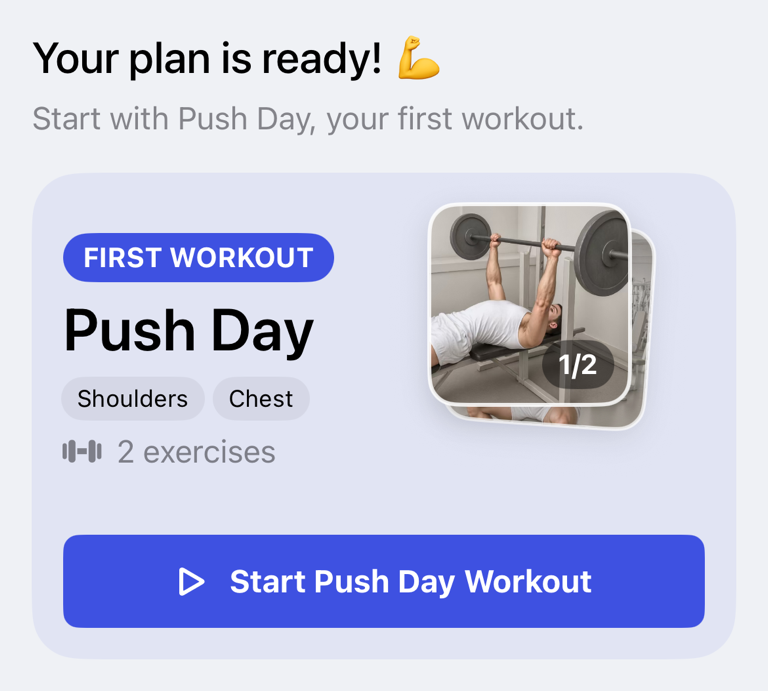
When this is your very first planned workout, the Workouts tab shows a card that says Your plan is ready!. Tap Start Push Day Workout on that card to begin.
Start an empty workout
Use this when you want to train without preparing a plan first.
- Tap the Workouts tab in the bottom bar.
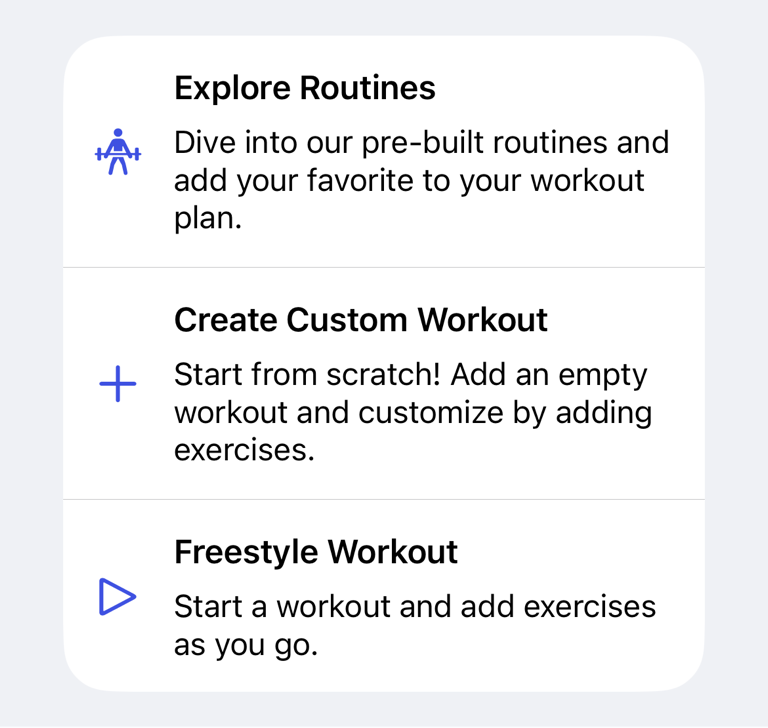
- Tap Freestyle Workout.
- In the sheet, tap Start a Freestyle Workout.
- Tap Add Exercise.
- Choose the exercise you want to do.
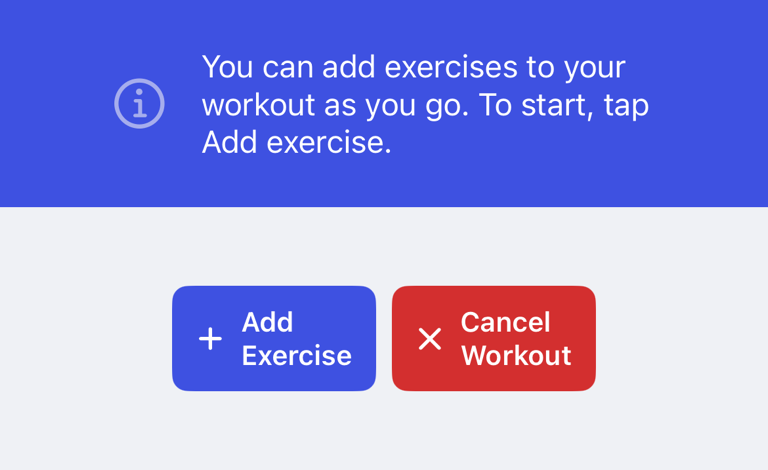
You can add more exercises later from the workout screen.
Start from a pre-built routine
When you do not have any workouts yet, the Workouts tab shows Explore Routines.
- Tap Explore Routines.
- Choose a routine.
- Tap the routine to view its details.
- Start the workout you want to perform, or add the routine to your workout plan.
For editing plans in more detail, see Create and edit workout plans.
Log your first set
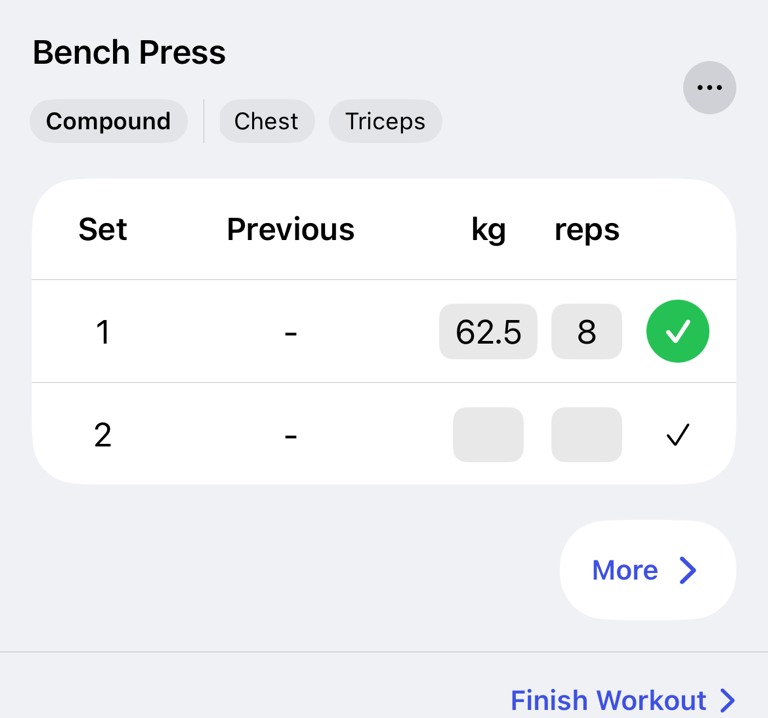
Each exercise shows rows for its sets. The columns depend on the exercise type, but most strength exercises show kg or lb and reps.
- Enter the weight for the set.
- Enter the reps.
- Tap the check button at the end of the set row.
After a set is completed, Gymfile updates workout progress and can start rest tracking if your settings use it.
Add another exercise
- Tap Add Exercise.
- Select the exercise.
- Continue logging sets as normal.
Exercises added during the workout belong to that active workout. If you started from a plan, adding an exercise here does not automatically rewrite the original plan.
Finish or cancel
When you are done, tap Finish Workout at the bottom of the exercise page. The final workout page opens. Tap Finish Workout again and confirm.
If some exercises are unfinished, Gymfile asks you to confirm before saving. If you do not want to keep the session, tap Cancel Workout instead. Canceling warns that you will lose your progress.
Important behaviour
Finishing saves the workout to your history. Completed sets can be used for progress charts, muscle recovery, personal records, and future workout values.
Starting from a workout plan copies the plan into a workout session. Changes made while logging are part of that session. Plan editing is handled separately.
If you close the active workout sheet, the workout is not finished automatically. Tap the active workout bar to continue, finish, or cancel it.
Common questions
Do I need a workout plan first?
No. Use Freestyle Workout if you want to start immediately and add exercises as you train.
Why can’t I start another workout?
Gymfile allows one active workout at a time. Finish or cancel the current workout first.
Can I edit a saved workout later?
Yes. Completed workouts appear in your history. Open a finished workout to review details and make changes when needed.