Track body measurements
Record body metrics to follow changes over time.
Brief explanation
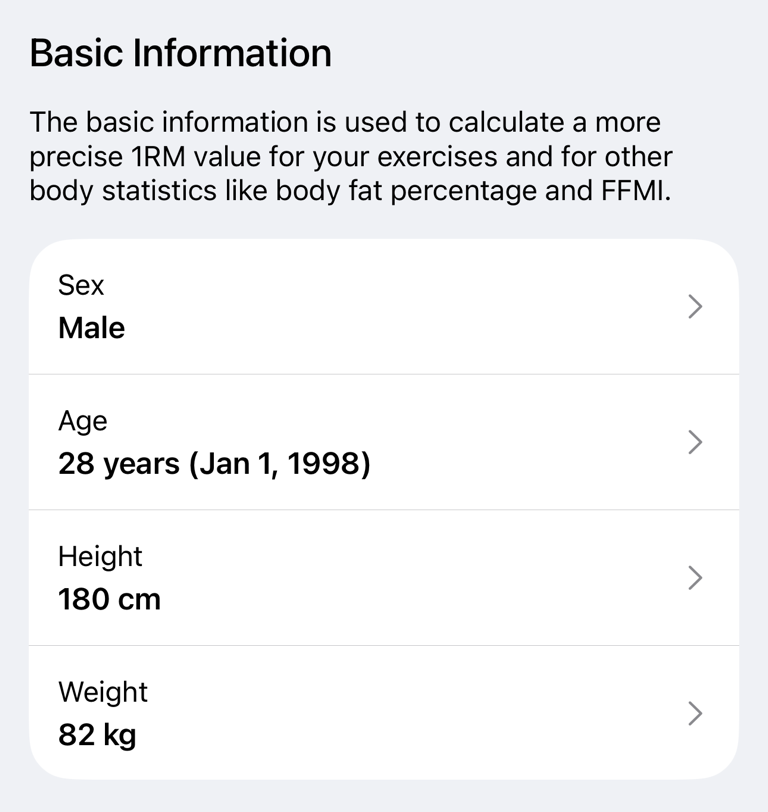
Use Measurements to record body values such as weight, height, body-fat inputs, and tape measurements.
To use consistent pictures alongside those values, see Take and compare progress photos.
How it works
The Measurements screen groups values into Basic Information, Caliper Measurements, Body Composition Statistics, Tape Measurements, and Body Metrics Statistics. Saved values keep their own date and time, so each measurement can show history and changes over time.
Body composition and body metric values are calculated from the information you enter. They are approximate and depend on the measurement method, your inputs, and the formula used by the app.
Add a body measurement
- Tap the Measurements screen.
- Tap the row for the value you want to update, such as Weight, Height, or Waist.
- Tap Add Data.
- Enter the value.
- Tap Save.
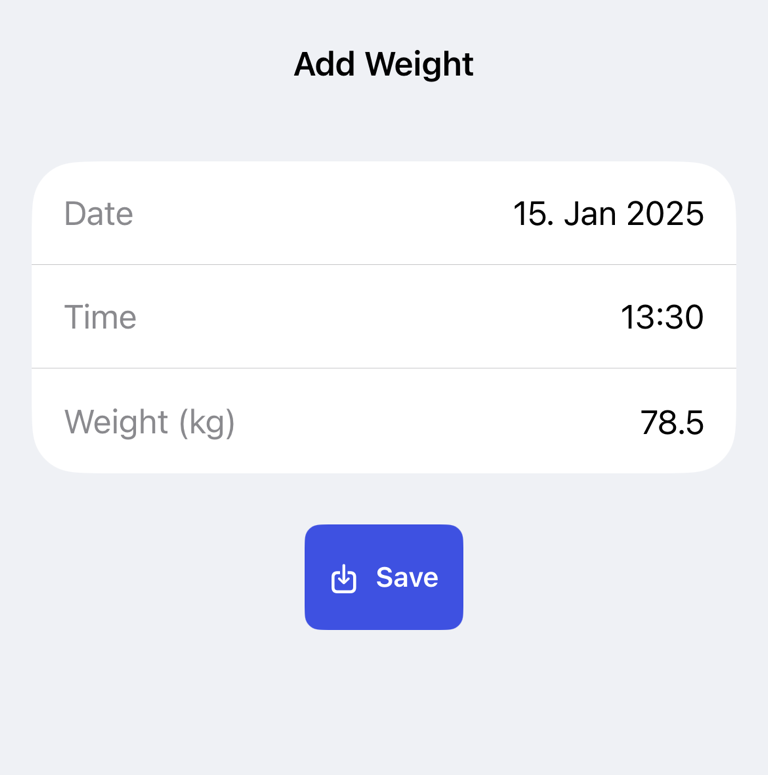
The detail screen shows Current value, a chart when history exists, and History for previous saved values.
Track weight and tape measurements
Basic Information includes Height and Weight. Weight can also be used by workout calculations, such as body-weight resistance and more precise strength estimates.
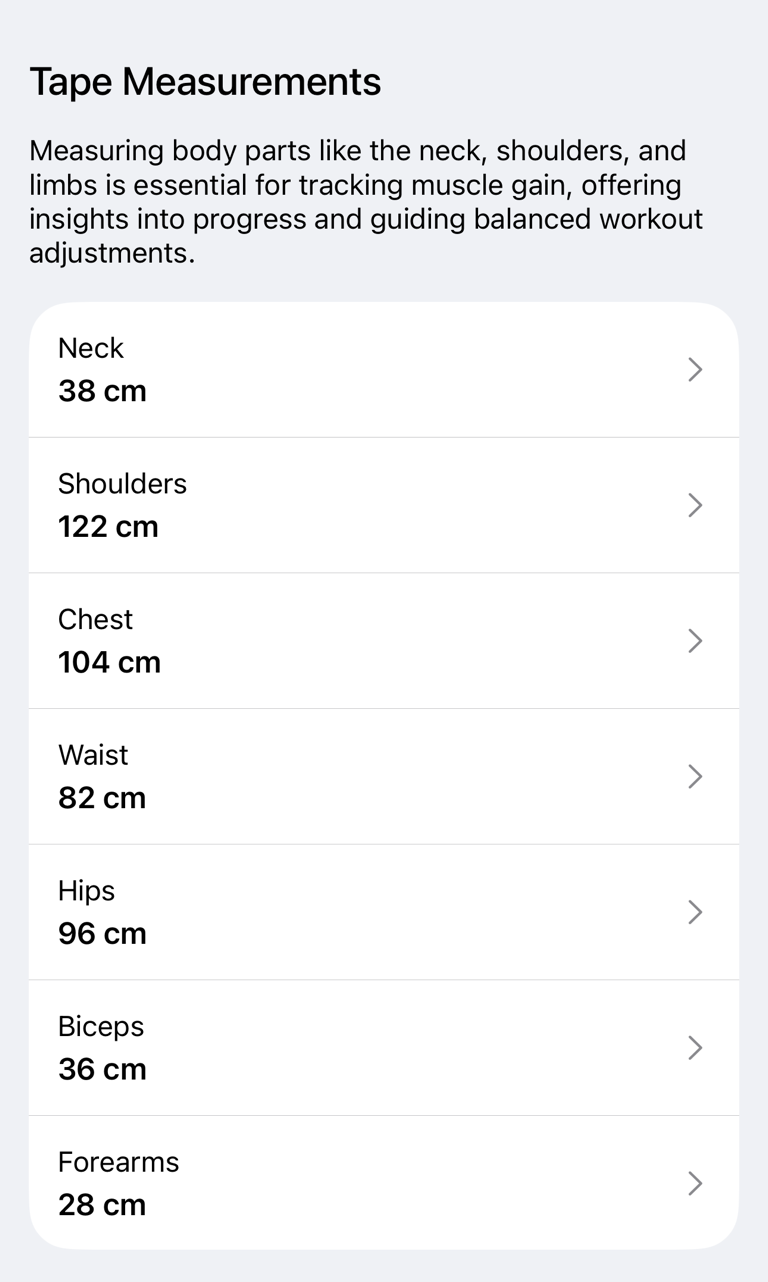
Turn on Tape Measurements to track body-part measurements such as neck, shoulders, chest, waist, hips, biceps, forearms, wrists, thighs, calves, and ankles. Tape values help you follow physique changes that may not be visible from body weight alone.
Track body-fat percentage
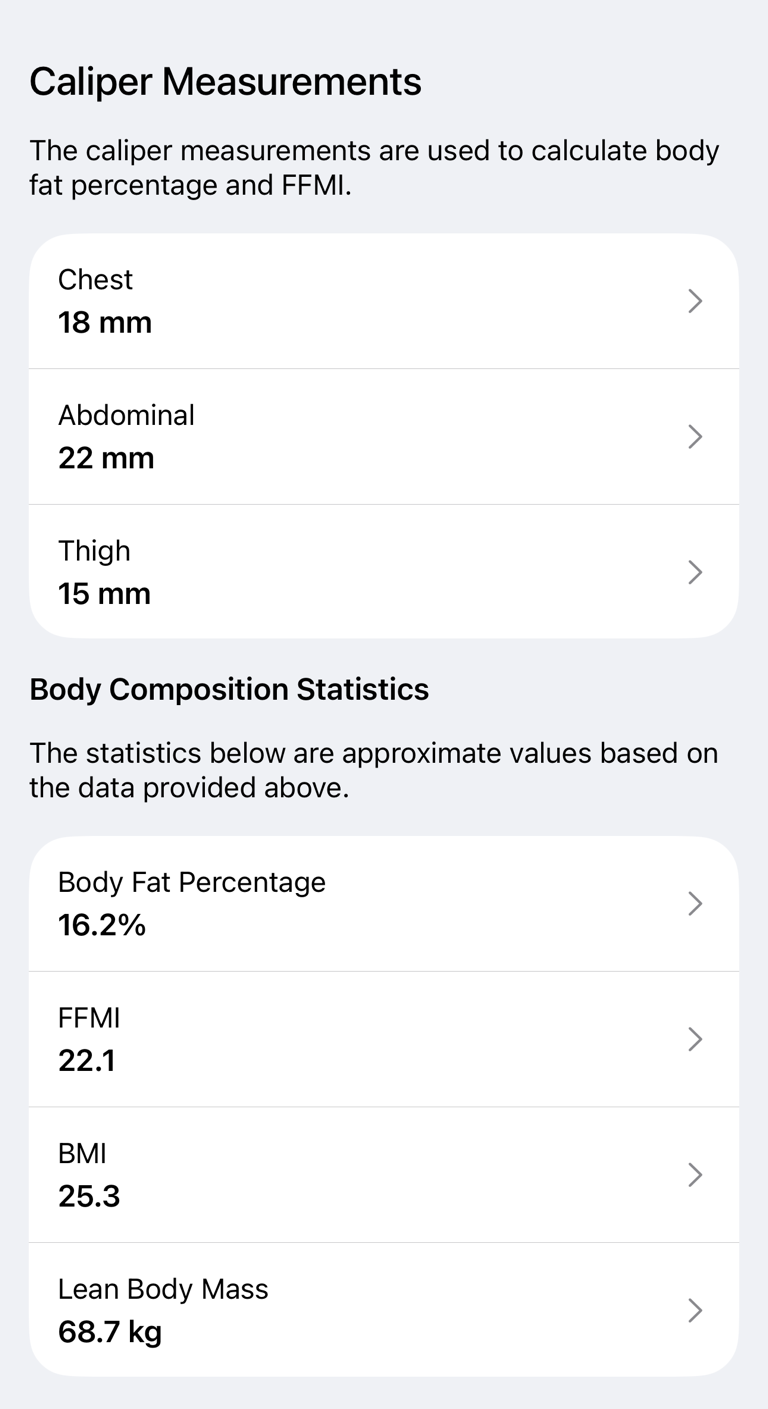
Turn on Caliper Measurements to enter skinfold values. The app uses different caliper points depending on your sex. Fill in Basic Information first so the app can show the correct caliper fields.
When enough caliper data is available, Body Composition Statistics can show Body Fat Percentage, FFMI, BMI, and Lean Body Mass. For Body Fat Percentage, the detail screen also lets you change the correction factor if you need to adjust the estimate.
Understand calculated body metrics
Calculated values are shown only when the required inputs are available. For example, body-fat and FFMI calculations depend on your body information and caliper measurements. Tape-measurement ratios depend on the tape values you enter.
Tap What are these values and how are they calculated? or Read more about how these values are calculated to open the in-app explanation for the selected metric group.
View changes over time
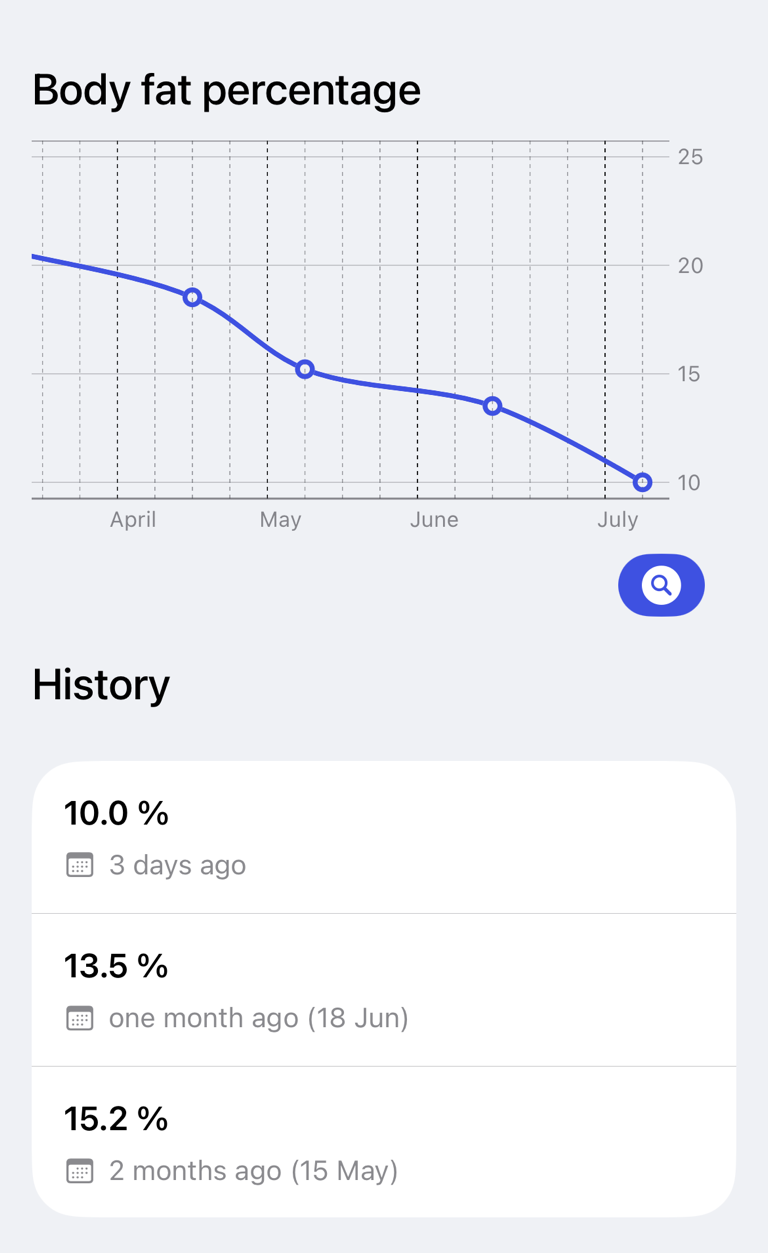
Open a measurement detail screen to see the latest value, chart, and history. You can add multiple values over time and delete an individual history entry from its context menu.
You can also add a Measurement chart to Insights:
- Tap the Insights tab.
- Tap Add Section.
- Tap Measurement.
- Select the measurement you want to chart.
For more about customizing charts, see Track progress, muscle recovery and training balance.
Understand calories burned
Workout calorie values are estimates. They can differ from other apps because each app may use different inputs, formulas, sensors, rounding, or activity assumptions. Treat calories as a rough trend, not an exact measurement.
Common questions
Why are calculated values missing?
The app needs the required source measurements first. Fill in Basic Information and the relevant caliper or tape measurements, then reopen the result.
Why do my numbers differ from another app or device?
Measurement formulas, unit conversion, rounding, wearable data, and body-fat estimation methods vary. Use one method consistently when you want to compare trends.
Can I correct old entries?
Yes. Open the measurement detail screen and use the history list to review saved entries. Delete incorrect entries and add the correct current value again.