Use Gymfile with Apple Watch, Health and Fitness
Connect workouts and body data across iPhone, Apple Watch, Health and Fitness.
Brief explanation
Gymfile can work with Apple Watch and Apple Health so your workout and body data stay useful outside the iPhone app. You can start a workout from Apple Watch, log sets during training, and keep Health updated with workout and measurement data when permissions allow it.
How it works
The Apple Watch app mirrors your workout templates from iPhone. When no workout is active, the watch shows Workouts. Tap a workout to review its exercises, then use Start Workout to begin.
During an active workout, Apple Watch shows the current exercise and set editor. Changes made on the watch are sent back to iPhone, and changes made on iPhone are pushed back to the watch. If the phone is not reachable for a short time, the watch keeps the workout state locally and sends queued actions when connectivity returns.
Health integration is separate from watch sync. Gymfile asks for Health permissions from the Measurements tab when access is needed. With permission, the app can read weight, height, biological sex, date of birth, active energy, and workouts. It can write body weight, body fat percentage, BMI, lean body mass, waist circumference, active energy, and strength-training workouts.
Set up Apple Watch
- Install Gymfile on your iPhone.
- Open the Watch app on iPhone.
- Install Gymfile on Apple Watch if it is not installed automatically.
- Open Gymfile on iPhone so your workouts and settings can sync.
- Open Gymfile on Apple Watch.
If the watch shows Loading…, keep the iPhone nearby and open Gymfile on iPhone once. The watch needs a current snapshot from the phone before it can show your workout templates.
Start a workout from Apple Watch
- Open Gymfile on Apple Watch.
- In Workouts, tap the workout you want to perform.
- Review the exercise list.
- Tap Start Workout.
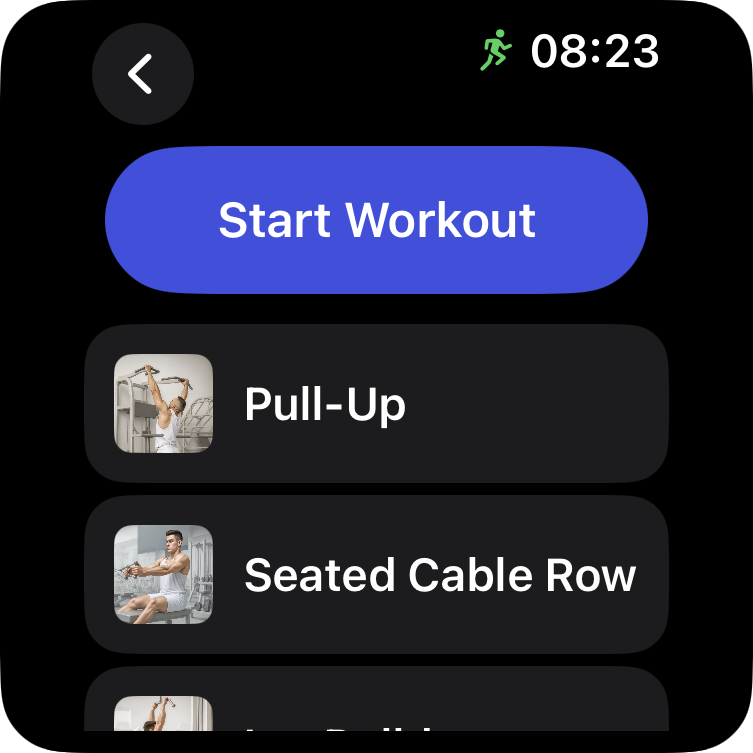
If the watch shows No templates, set up your workout routine on iPhone first. The watch starts from workout templates created or saved in the iPhone app.
Log sets from Apple Watch
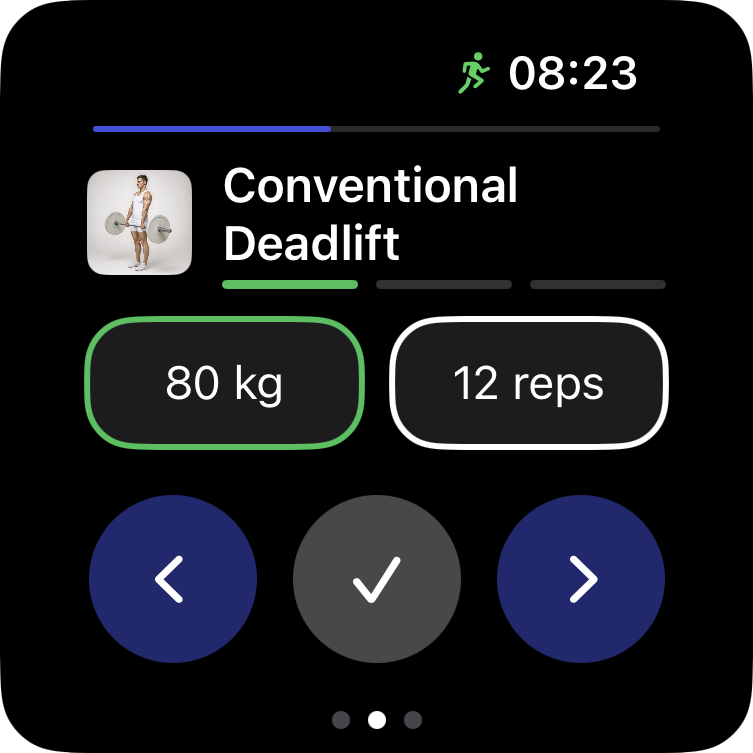
- Start a workout on Apple Watch or continue an active workout that was started on iPhone.
- Use the set editor to adjust weight, reps, or time.
- Tap the completion control for the set.
- Swipe to move between the exercise list, set editor, and notes.
- When all planned sets are done, use the completion screen to finish the workout.
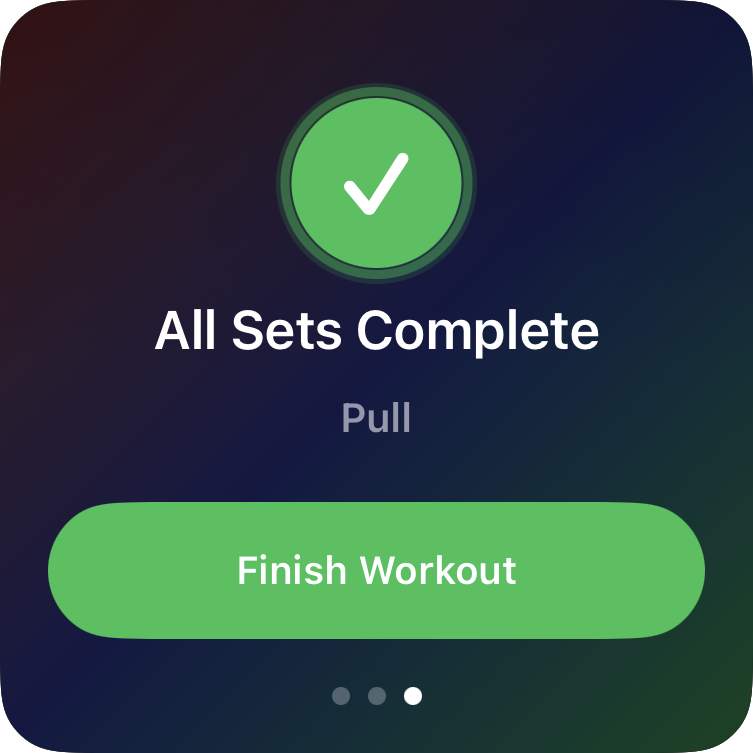
The watch can also show rest timing when the rest timer is enabled in your app settings. Supersets and warm-up sets follow the workout structure sent from iPhone.
Configure Health permissions
- Tap the Measurements tab on iPhone.
- If Health permissions are required, read the HealthKit information screen.
- Tap Continue.
- In the Apple Health permission sheet, allow the data types you want Gymfile to use.
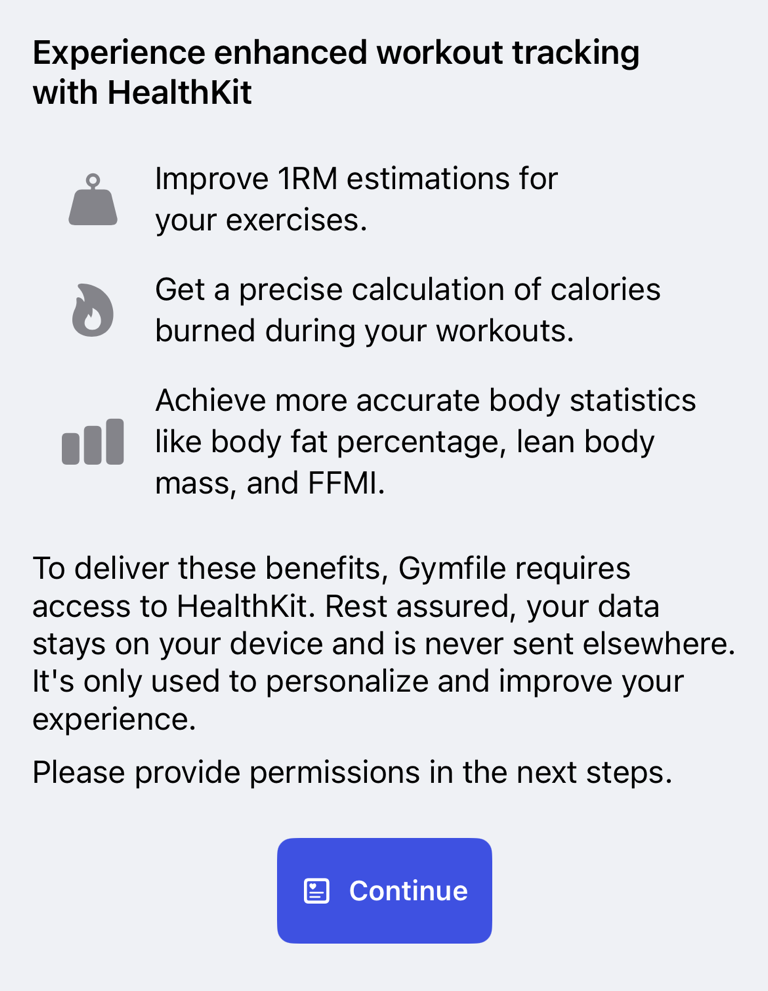
Apple controls the final permission sheet. You can change these permissions later in the Health app or in iOS Settings.
What Gymfile reads and writes
Gymfile reads Health data that helps calculate training and body statistics, including body weight, height, biological sex, date of birth, active energy, and workouts.
Gymfile writes completed strength-training workouts and active energy when a finished workout has enough workout data and calories are available. The app also writes supported body measurements when you save them in Gymfile, including weight, body fat percentage, BMI, lean body mass, and waist circumference.
When Gymfile finds an existing workout in the same time range, it only replaces workouts created by the iPhone app. Watch-created workouts from another source are preserved.
Apple Fitness integration
Workouts saved to Apple Health can appear in Apple Fitness and other apps that read Health workout data. Apple Fitness display, rings, awards, and summaries are controlled by Apple, not by Gymfile.
Sync body measurements with Health
Weight and height can be imported from Health after permission is granted. Measurements you enter in Gymfile can also be written to Health when the related write permission is enabled.
For more detail about measurement tracking inside the app, see Log body measurements and habits.
Important behaviour
Apple Watch workout sync depends on Watch Connectivity. Keep iPhone and Apple Watch near each other if updates do not appear immediately.
Health permission choices are per data type. If you allow workouts but deny body measurements, workouts can still sync while measurements stay private.
Health data stays on your device and in Apple Health according to your iOS settings. Gymfile uses Health data to personalize workout and measurement features.
Common questions
Why are my workouts missing on Apple Watch?
Open Gymfile on iPhone, then reopen the watch app. If No templates appears, create or save a workout routine on iPhone first.
Why did a finished workout not appear in Apple Fitness?
Check that Health workout write permission is enabled. The workout also needs to be finished, not cancelled, and must include enough completed workout data for Gymfile to save it.
Why are measurements not syncing with Health?
Open Measurements and confirm Health permissions. If you denied a specific data type, enable it again in Apple Health or iOS Settings.