Manage Gymfile Pro, trials and purchases
Start a trial, restore a purchase, use Pro on another device or manage your subscription.
Gymfile Pro unlocks the app's paid features through purchases handled by Apple. You manage billing, renewals and cancellations with your Apple ID, while Gymfile checks your active purchase inside the app.
How it works
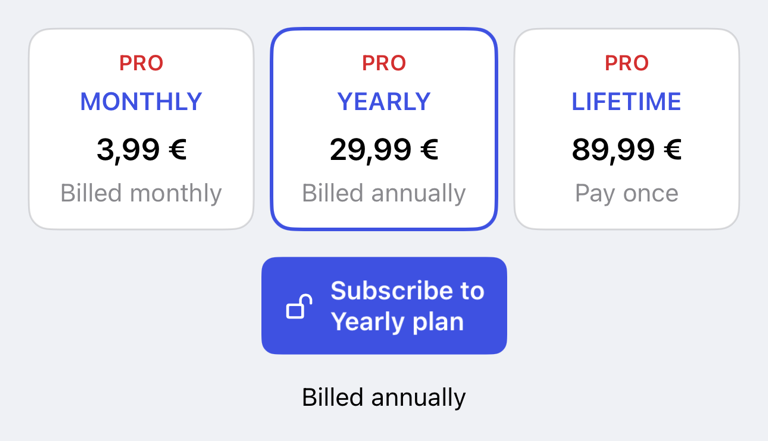
The Pro screen loads the available monthly, yearly and lifetime options from the App Store. If a subscription includes a free trial, the main button says Start Free Trial. If no trial is available for the selected plan, the button shows the matching purchase action, such as Subscribe to Yearly plan, Subscribe to Monthly plan or Unlock Lifetime.
Purchases are attached to your Apple ID, not to one iPhone. If you use the same Apple ID on another device, you can restore your purchase there.
Start a free trial or purchase Pro
- Tap Settings.
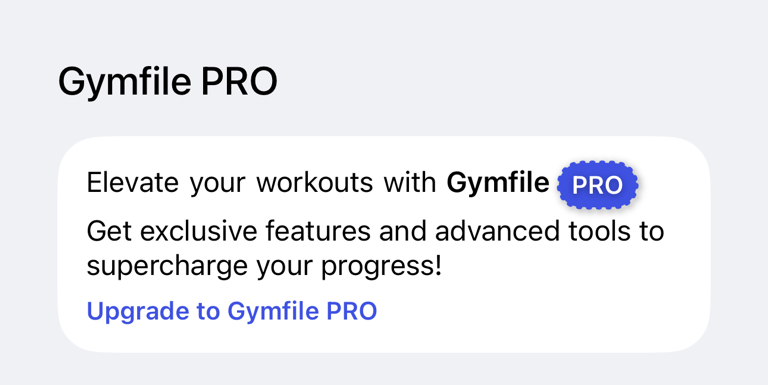
- In the Gymfile PRO section, tap Upgrade to Gymfile PRO.
- Choose the plan you want to use.
- Tap Start Free Trial, Subscribe to Yearly plan, Subscribe to Monthly plan or Unlock Lifetime.
- Confirm the purchase with Apple.
If a promotion is available, the Pro screen can show a promotion banner above the plan options. You can use the promoted plan or tap another plan before continuing.
Use invitation and referral trials
In Gymfile, the Settings screen can show Earn 3 Months Free. Tap the referral row that says Invite 1 friend and you'll both get 3 months of Pro free. and follow the sharing flow.
If you receive a promo code or invitation link, open it on the iPhone where you use Gymfile and follow Apple's redemption steps. When the code is accepted, return to Gymfile and check the Pro screen.
Check whether Pro is active
- Tap Settings.
- Find the Gymfile PRO section.
If Pro is active, the section says As a Gymfile PRO member, you have full access to all features. We appreciate your support! If Pro is not active, the section shows Upgrade to Gymfile PRO.
Restore purchases
Use restore when you already bought Pro with the same Apple ID, reinstalled the app or moved to another device.
- Tap Settings.
- Tap Upgrade to Gymfile PRO.
- Tap Restore Purchase.
- Wait for the restore to finish.

If Apple finds an active subscription or lifetime purchase, Gymfile updates your Pro status. If no purchase is found, the app shows We could not find any purchases to restore.
Use Pro on another device
- Sign in to the other device with the same Apple ID that bought Pro.
- Install Gymfile.
- Open Settings.
- Tap Upgrade to Gymfile PRO.
- Tap Restore Purchase.
For moving your workout data too, see Sync, back up and restore your data with iCloud.
Cancel a subscription
Subscriptions are managed by Apple:
- Open iPhone Settings.
- Tap your name.
- Tap Subscriptions.
- Tap the Gymfile subscription.
- Tap Cancel Subscription and confirm.
You can also manage subscriptions from the App Store account screen.
Important behaviour
Cancelling stops future renewals. You keep Pro access until the current paid period or trial ends. After the period ends, Gymfile returns to the free feature set unless another active Pro purchase is available.
Deleting the app does not automatically cancel a subscription. Cancel it from Apple subscriptions if you do not want it to renew.
If a purchase is pending, Gymfile waits for Apple's result. If a purchase fails or is cancelled, the Pro screen shows the error from Apple and you can try again.
Common questions
Why do I not see a free trial?
Free trials depend on the selected App Store product and your Apple ID eligibility. If Apple does not offer a trial for your account, the button shows the regular purchase action instead.
Can I share Pro between Gymfile and LiftHer?
Use the same app and the same Apple ID that made the purchase. If you are unsure which purchase applies, open the Pro screen and tap Restore Purchase.
Who handles refunds?
Apple handles App Store refunds and billing issues. Use Apple's purchase history or reportaproblem.apple.com to request a refund or review a charge.